Table of Contents >> Show >> Hide
- What Is Kodi 17.5 and Why Update?
- Before You Update: A Few Things You Should Know
- What You Need to Update Kodi 17.5 on Firestick or Fire TV
- Step 1: Check Your Current Kodi Version
- Step 2: Back Up Kodi Before Updating
- Step 3: Enable Apps from Unknown Sources
- Step 4: Install or Open the Downloader App
- Step 5: Download the Kodi 17.5 APK
- Step 6: Install Kodi 17.5 Over the Existing Version
- Step 7: Launch Kodi and Confirm the Update
- Alternative Method: Update Kodi 17.5 with ADB
- Common Problems and How to Fix Them
- Should You Uninstall the Old Kodi Version First?
- Is Updating Kodi on Firestick Legal?
- Best Practices After Updating Kodi 17.5
- Experience Notes: Real-World Lessons from Updating Kodi 17.5 on Firestick or Fire TV
- Conclusion
Updating Kodi on a Firestick or Fire TV sounds like one of those tiny tech chores that should take three minutes and one confident button press. Then you open the settings menu, see “Developer Options,” “Unknown Sources,” APK files, versions, builds, and suddenly your streaming stick feels like it has applied for a job in software engineering. The good news: updating to Kodi 17.5 on Firestick or Fire TV is not nearly as scary as it looks.
Kodi 17.5, also known as Kodi Krypton 17.5, was a maintenance release focused on bug fixes and smoother performance rather than flashy new features. For Firestick and Fire TV users, that matters. These devices are compact, affordable, and convenient, but they do not have unlimited storage or monster processing power. A cleaner Kodi installation can mean fewer crashes, fewer playback quirks, and fewer moments where your remote becomes a tiny plastic stress ball.
This guide explains how to update to Kodi 17.5 on Firestick or Fire TV using the most practical method: installing the official Android APK over your existing Kodi installation. You will also learn how to prepare your device, avoid losing your settings, troubleshoot common update problems, and keep your media center clean after the update. Think of it as a tune-up for your Fire TV setup, minus the mechanic’s invoice.
What Is Kodi 17.5 and Why Update?
Kodi is a free, open-source media center designed for playing videos, music, podcasts, and other digital media from local storage, network storage, and legitimate online sources. On Firestick and Fire TV, Kodi runs as an Android application because many Fire TV devices are based on Fire OS, Amazon’s Android-based operating system.
Kodi 17.5 was part of the Krypton generation. It did not reinvent the entire interface, but it brought useful fixes. The release addressed several issues, including Android audio handling, video library behavior, CEC power-message handling, guide-window timeline jumps, and other smaller bugs. In plain English, Kodi 17.5 was the “let’s make this thing behave better” update.
Updating is especially helpful if your older Kodi 17 build is freezing, closing unexpectedly, refusing to add content manually to the video library, or acting moody with certain media files. Your Firestick is not being dramatic. It may simply need a cleaner version of Kodi.
Before You Update: A Few Things You Should Know
Kodi 17.5 Is an Older Version
Kodi 17.5 is no longer the newest Kodi release. It is useful when you need compatibility with an older build, older add-ons, a legacy skin, or a device setup that was built around Kodi Krypton. However, if you are starting fresh today, the latest stable Kodi version is usually the better choice for security, compatibility, and long-term support.
That said, this guide focuses specifically on Kodi 17.5 because some users still need it for older Fire TV setups. Maybe your favorite skin was built for Krypton. Maybe your home media setup has been running happily since 2017 and you do not want to poke the bear. Fair enough. We respect a stable living-room ecosystem.
Updating Usually Preserves Your Kodi Data
If you install the official Kodi 17.5 APK over an existing official Kodi installation, your settings, library, and user data should normally remain intact. Kodi stores user data separately from the application package, so a standard update does not automatically wipe everything.
However, you should still back up anything important. Technology is wonderful right up until it decides to behave like a raccoon in a server room. Back up your Kodi user data if you have a carefully organized library, custom skin settings, add-ons, or advanced configuration files you do not want to rebuild.
Use the Official Kodi APK
For safety, use the official Kodi Android APK from Kodi’s own download archive whenever possible. The Firestick and most Fire TV devices use the Android ARM version. For Kodi 17.5, that means the Android ARM APK for Kodi 17.5 Krypton.
Avoid random “fully loaded” Kodi packages. They often come with unknown modifications, outdated add-ons, sketchy sources, or unwanted extras. Kodi itself is legal and legitimate. Problems usually begin when users install questionable third-party builds that promise the universe and deliver a headache.
What You Need to Update Kodi 17.5 on Firestick or Fire TV
Before you begin, make sure you have the following:
- An Amazon Firestick, Fire TV Stick, Fire TV Cube, or compatible Fire TV device
- A stable Wi-Fi connection
- Enough free storage space for the Kodi APK
- The Downloader app or another trusted sideloading method
- The official Kodi 17.5 Android ARM APK
- About 10 to 15 minutes of patience
Patience is listed last, but it is secretly the most important ingredient. Fire TV menus sometimes move around depending on your model and software version. If your screen does not match every step exactly, do not panic. The general path is still the same.
Step 1: Check Your Current Kodi Version
First, confirm which Kodi version is already installed.
- Open Kodi on your Firestick or Fire TV.
- Go to the gear icon for Settings.
- Select System Information.
- Look for the version number at the bottom of the screen.
If you are already on Kodi 17.5, there is nothing to update. You may still want to clean cache, remove unused add-ons, or update to a newer Kodi version if your device supports it. If you are on Kodi 17.0, 17.1, 17.3, or 17.4, updating to Kodi 17.5 can be worthwhile.
Step 2: Back Up Kodi Before Updating
This step is optional, but strongly recommended. If your Kodi setup is basic, you may decide to skip it. If your setup includes custom libraries, favorite skins, custom sources, or add-ons you spent an entire Saturday arranging, back it up.
Simple Backup Method
The simplest approach is to use a Kodi backup add-on from the official Kodi repository if available in your setup. This can save your user data to a location you choose, such as network storage or external storage.
Manual Backup Method
Advanced users can back up the Kodi userdata folder manually with a file manager or ADB. This folder stores your settings, library database, thumbnails, and many customizations. If that sentence made your eyes glaze over, use the simpler backup method. No shame. The goal is to watch media, not earn a degree in folder archaeology.
Step 3: Enable Apps from Unknown Sources
Because Kodi is not installed from the Amazon Appstore in this process, Fire TV must allow installation from outside the store. This is called sideloading.
On many Fire TV devices, follow these steps:
- From the Fire TV home screen, open Settings.
- Select My Fire TV or Device.
- Choose Developer Options.
- Turn on Apps from Unknown Sources.
- If your device asks you to approve the Downloader app specifically, allow Downloader to install unknown apps.
If you do not see Developer Options, go to Settings, then My Fire TV, then About. Highlight your Fire TV device name and press the select button on your remote several times until the developer menu is enabled. Some Fire OS versions hide developer settings until you unlock them this way.
On newer Fire TV models, the wording may vary. You may see Install Unknown Apps instead of a single global setting. In that case, choose Downloader and switch permission to On.
Step 4: Install or Open the Downloader App
Downloader is one of the easiest tools for installing APK files on Firestick or Fire TV. It works like a small browser and file downloader designed for TV screens.
- Go to the Fire TV home screen.
- Select Find or use the search icon.
- Search for Downloader.
- Install the Downloader app from the Amazon Appstore.
- Open Downloader after installation.
If Downloader asks for permission to access files, allow it. It needs that permission to save the APK file before installation. Without it, Downloader is basically a delivery driver with no permission to enter the driveway.
Step 5: Download the Kodi 17.5 APK
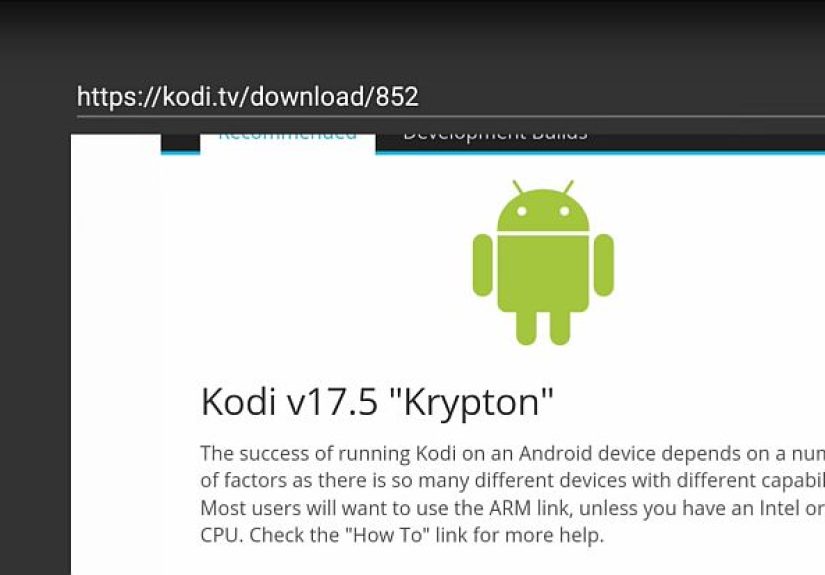
Inside Downloader, enter the address for the official Kodi 17.5 Android ARM APK from the Kodi download archive. The correct file is the Kodi 17.5 Krypton ARM APK. This is the version most Firestick and Fire TV devices use.
Once the file begins downloading, wait for it to complete. Kodi 17.5 is not tiny, so your download speed depends on your connection. If the download fails, check your Wi-Fi connection, restart Downloader, and try again.
Important Safety Tip
Only download Kodi from a trusted source. Do not install a mystery APK from a pop-up-heavy website that looks like it was designed during a thunderstorm. Unofficial APKs can be modified, outdated, or bundled with things you did not ask for.
Step 6: Install Kodi 17.5 Over the Existing Version
After Downloader finishes downloading the APK, Fire TV should show an installation screen.
- Select Install.
- Wait for the installation to finish.
- Choose Done instead of opening Kodi immediately.
- When Downloader asks whether to delete the APK file, choose Delete to free storage space.
Deleting the APK after installation does not remove Kodi. It only removes the installer file. Firestick storage is limited, so cleaning up the APK is a smart move. Your device will appreciate the breathing room, even if it cannot send a thank-you card.
Step 7: Launch Kodi and Confirm the Update
Now open Kodi again.
- Go to your Fire TV apps list.
- Find and open Kodi.
- Go to Settings.
- Select System Information.
- Confirm that the version now says Kodi 17.5.
If Kodi opens normally and your settings are still there, congratulations. You have updated Kodi on Firestick or Fire TV without turning your living room into a tech-support hotline.
Alternative Method: Update Kodi 17.5 with ADB
If you prefer using a computer, you can update Kodi with Android Debug Bridge, also known as ADB. This method is more advanced but useful if Downloader is unavailable or your Fire TV remote is making text entry feel like a medieval punishment.
Basic ADB Update Process
- Enable ADB Debugging in Fire TV Developer Options.
- Find your Fire TV IP address under Settings > My Fire TV > About > Network.
- Install Android platform tools on your computer.
- Connect to the Fire TV using ADB.
- Run the reinstall command with the Kodi 17.5 APK file.
The command generally uses the reinstall option so the app updates without removing existing data. This method is best for users who are comfortable with command-line tools. If you are not, Downloader is simpler and less likely to make you whisper “what have I done?” at your television.
Common Problems and How to Fix Them
Problem: “App Not Installed”
This message can appear when the APK is corrupted, the wrong architecture was downloaded, or the existing Kodi installation was signed differently. If your current Kodi came from an unofficial source, the official Kodi APK may not update over it.
Fix it by downloading the official ARM APK again. If the same error appears, back up your Kodi data, uninstall the old Kodi version, and install Kodi 17.5 fresh. Be careful: uninstalling Kodi can remove local app data, so back up first.
Problem: Developer Options Are Missing
Some Fire OS versions hide Developer Options. Open Settings > My Fire TV > About, highlight your device name, and press the select button repeatedly until developer settings are enabled. Then return to the previous menu and open Developer Options.
Problem: Downloader Cannot Install the APK
Make sure Downloader has permission to install unknown apps. Go to Settings > My Fire TV > Developer Options > Install Unknown Apps, then set Downloader to On. Also confirm that your Fire TV has enough free storage.
Problem: Kodi Opens but Runs Slowly
Firestick devices can slow down when storage is nearly full or too many background apps are active. Delete unused apps, clear cache for apps you rarely use, restart the Firestick, and remove unnecessary Kodi add-ons. A Firestick with almost no free space is like a suitcase packed by someone who refuses to leave socks behind.
Problem: Add-ons Stop Working After the Update
Some add-ons are version-specific or no longer maintained. Update add-ons from their official repositories where possible. If an add-on depends on an outdated source, consider replacing it with a legal, maintained alternative.
Should You Uninstall the Old Kodi Version First?
Usually, no. Installing Kodi 17.5 over an older official Kodi 17 version is the best approach because it keeps your settings and library data. Uninstalling first is only necessary if the update fails, your existing Kodi build is unofficial, or you want a completely fresh start.
If you uninstall Kodi, you may lose your app data. That means your library, settings, add-ons, and skins could disappear. Do not uninstall first unless you have backed up or you are comfortable rebuilding everything from scratch.
Is Updating Kodi on Firestick Legal?
Yes, installing and updating Kodi itself is legal. Kodi is an open-source media player. The legal issues come from what users install inside Kodi and what content they access. Use Kodi for your own media, public-domain content, official add-ons, and legitimate streaming sources.
Avoid add-ons or builds that advertise free access to paid movies, live TV, sports, or subscription content without permission. Besides the legal and ethical concerns, those add-ons are often unstable and risky. They turn a simple media center into a digital junk drawer with suspicious wiring.
Best Practices After Updating Kodi 17.5
Restart Your Firestick
After updating, restart your Firestick or Fire TV. This clears temporary memory and gives Kodi a clean launch. You can restart from Fire TV settings or simply unplug the device for a few seconds and plug it back in.
Check Your Media Sources
Open Kodi and confirm that your local files, network shares, or media folders still appear correctly. If a source is missing, re-add it through the Kodi file manager or library settings.
Update Official Add-ons
Go to your add-ons section and check for available updates. Updated add-ons can improve compatibility and reduce errors after a Kodi version change.
Remove Old APK Files
If you used Downloader, delete the Kodi APK after installation. APK files can quietly pile up and steal storage. On a Firestick, every megabyte matters. Treat storage like a tiny apartment: if you do not use it, do not keep it in the hallway.
Experience Notes: Real-World Lessons from Updating Kodi 17.5 on Firestick or Fire TV
One of the biggest lessons from updating Kodi on Firestick is that the process is simple, but the small details matter. Many users run into problems not because Kodi 17.5 is difficult to install, but because one little setting is missed. The most common example is allowing Downloader to install unknown apps. On older Fire TV menus, there was often a single “Apps from Unknown Sources” switch. On newer menus, permission may be assigned per app. That means Downloader can download the Kodi APK perfectly, then fail at the final step because it does not have installation permission. It feels like getting all the way to the front door and realizing the key is still in the car.
Another practical experience is that storage space matters more than people expect. A Firestick with several streaming apps, cached thumbnails, old APK files, and unused games can become sluggish. Kodi itself also creates thumbnails and database files as you use it. Before updating, it is worth spending two minutes deleting apps you do not use. After updating, delete the APK installer. This simple habit prevents many performance complaints later.
Users with customized Kodi setups should be extra careful. If you have only installed Kodi and added one local media folder, updating is usually painless. But if your Kodi has a custom skin, several repositories, advanced settings, network shares, and library artwork, you should back up before touching anything. The update should preserve data when installed over an official Kodi build, but backups are cheap insurance. Nobody wants to rebuild a carefully organized movie library at midnight because they trusted fate and a progress bar.
It is also worth noting that older Kodi versions can feel better on older hardware. Some users prefer Kodi 17.5 because it works well with legacy skins or older Fire TV devices. Newer software is not always lighter. However, staying on an older version has trade-offs. You may lose compatibility with modern add-ons, newer media formats, or current security expectations. If Kodi 17.5 is being installed for a specific reason, that is understandable. If you are simply updating because an old guide told you to, consider whether a newer stable Kodi release would be better for your device.
The smoothest update experience usually follows this pattern: check the current version, back up if needed, enable the correct Fire TV installation permission, download the official ARM APK, install over the existing Kodi app, delete the installer, restart the Firestick, and verify the version. That sequence avoids most headaches. It is not glamorous, but neither is organizing cables behind a TV. Both jobs are deeply satisfying once they are done.
Finally, do not judge success only by whether Kodi opens. Spend a few minutes testing playback, navigation, library scanning, and add-ons. Open a local video file, test audio, move through your library, and confirm that your remote buttons behave normally. If everything works, your update is complete. If something feels off, restart the device before making bigger changes. The classic “turn it off and on again” advice has survived for a reason: annoyingly, it works a lot of the time.
Conclusion
Updating to Kodi 17.5 on Firestick or Fire TV is a manageable process when you use the official Android ARM APK and follow the steps carefully. The safest method is to install Kodi 17.5 over your existing official Kodi installation, which normally keeps your settings and library intact. Before updating, back up important data, enable installation from unknown sources, use Downloader or ADB, and delete the APK file after installation to save space.
Kodi 17.5 is an older release, but it can still be useful for legacy Fire TV setups, older skins, and users who specifically need the Krypton version. For most fresh installations, a newer stable Kodi release may be the smarter long-term choice. Either way, the golden rule is simple: download from trusted sources, avoid suspicious builds, and keep your Fire TV clean enough that it does not wheeze every time you open an app.
With the right preparation, updating Kodi does not have to be a technical soap opera. It is just a careful APK install, a quick restart, and a little cleanup. Your Firestick gets a refreshed media center, and you get to return to the couch, which is where all good technology projects should end.