Table of Contents >> Show >> Hide
- What an ISO file actually is
- What ISO files are used for
- How an ISO file is different from a ZIP file
- How to open an ISO file
- Can ISO files be bootable?
- Why people still use ISO files in a no-disc world
- Common mistakes people make with ISO files
- Should you keep or delete an ISO file after using it?
- How to know whether an ISO file is worth your attention
- Final thoughts
- Real-world experiences with ISO files
If you have ever downloaded Windows, Linux, a rescue tool, or some mysterious file that ends in .iso, congratulations: you have met one of the internet’s oldest workhorses. It may not be glamorous, but the ISO file is the digital equivalent of a very organized moving box. It keeps everything together, labels the shelves, and makes sure the contents look exactly the way they did on the original disc.
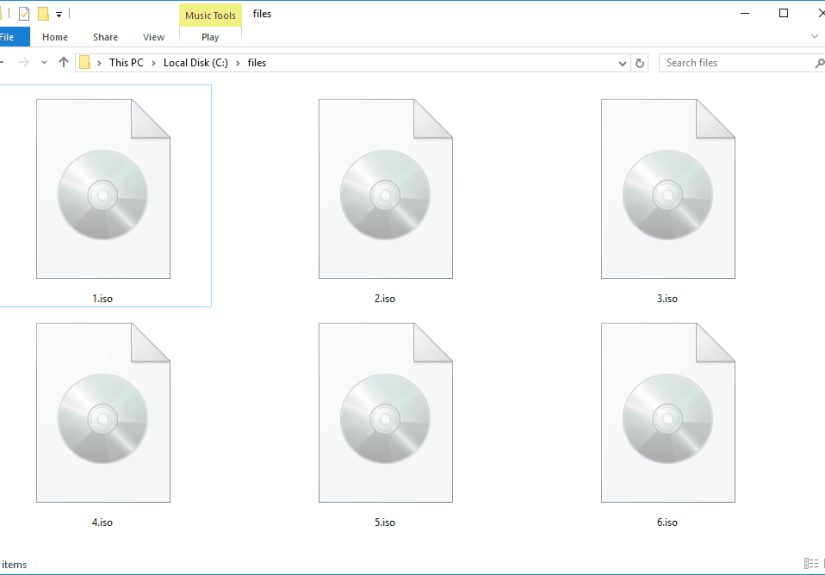
In plain English, an ISO file is a disc image. It is a single file that contains the contents and structure of an entire optical disc, such as a CD, DVD, or Blu-ray. Instead of mailing you a plastic disc like it is still 2006 and everyone owns a spindle of blank DVDs, publishers can offer one downloadable ISO file. You download it once, then mount it, burn it, or turn it into bootable installation media.
That sounds simple enough, but ISO files confuse people because they sit at the crossroads of storage, installation, backup, and recovery. Are they archives like ZIP files? Sort of, but not exactly. Can you open them? Usually yes. Can you install from them? Often yes. Can you just drag one onto a USB drive and expect magic? Absolutely not. This guide explains what an ISO file is, how it works, what it is used for, and the mistakes that make people want to throw their laptop gently into a lake.
What an ISO file actually is
An ISO file is a sector-by-sector style image of a disc bundled into one file. The name is tied to ISO 9660, a standard long associated with CD-ROM file systems. That is why people often call these files ISO images. The important idea is not just that the file stores documents or installers. It also preserves the disc’s layout, file system information, folder structure, and in many cases the boot data needed to start a computer.
Think of it this way: a regular folder copy is like copying the books off a bookshelf and tossing them into boxes. An ISO is like cloning the entire bookshelf, shelf labels, spacing, and all. That is why ISO files are useful when software publishers want users to get a copy that behaves like the original disc.
Why that matters
That “exact copy” behavior is the whole reason ISO files still matter. If you are distributing an operating system installer, firmware toolkit, antivirus rescue environment, or archived software collection, you do not want users getting “most of the files.” You want them getting the exact disc image in a form that can be mounted or written to other media with minimal drama.
ISO files are especially handy because they package a lot into one download. Instead of sharing thousands of tiny files and hoping none go missing, publishers can share one file that stays intact from server to desktop. Cleaner, simpler, less chaos.
What ISO files are used for
ISO files show up in more places than many people realize. Here are the most common uses:
1. Operating system installation
This is the big one. Windows installers, many Linux distributions, and server platforms are often distributed as ISO files. You download the image, then either mount it inside an existing OS or use it to create bootable USB or DVD installation media.
2. Recovery and rescue tools
Antivirus vendors, PC makers, and enterprise IT teams use ISO files for repair environments, diagnostics, rescue disks, and recovery media. When a machine will not boot normally, a bootable ISO can be the difference between “minor inconvenience” and “I guess I live here now.”
3. Firmware and driver packages
Server vendors and hardware manufacturers also distribute ISO images containing firmware updates, utilities, and platform tools. In IT environments, an ISO can act as portable, repeatable install media for systems that need consistent setup steps.
4. Archiving old discs
If you have legacy software, game discs, training DVDs, or custom company media, creating an ISO lets you preserve the original disc in a single file. That makes backup easier and saves wear and tear on the physical media.
5. Software distribution without a physical disc
Even though optical drives are basically modern unicorns, the disc format still matters in certain workflows. ISO files let publishers distribute “disc-style” media online without shipping actual discs.
How an ISO file is different from a ZIP file
This is where people often get tripped up. A ZIP file is mainly about compression and packaging. It stores files in a convenient bundle so you can unzip them later. An ISO file is about reproducing a disc image. It is not merely a container of files; it is a file that represents a disc as a disc.
That means extracting an ISO is not always the same as using it properly. If your goal is to grab a few files from inside, extraction is fine. If your goal is to preserve boot behavior or create installation media, you usually need to mount or write the ISO correctly rather than just unpacking it like a weekend suitcase.
ISO vs other similar file types
- ZIP: Good for compressed file bundles. Not a disc image.
- DMG: Apple’s disk image format, more common on Macs.
- IMG: Another image format that may represent disks or media, depending on context.
- WIM: A Microsoft imaging format used in deployment workflows, but not the same thing as an ISO.
How to open an ISO file
There are three main ways to use an ISO file: mount it, extract it, or burn/write it. The right choice depends on what you want to do.
Mounting an ISO
Mounting makes your computer treat the ISO like a real disc inserted into a drive. In modern versions of Windows, this is often built in. You can usually right-click the file and choose Mount, or sometimes just double-click it. The OS then creates a virtual drive letter, and you can browse the contents as if a DVD were sitting in your computer.
This is the easiest option when you want to install software, browse files, or run setup tools from an ISO without creating physical media. It is also the option that feels the most like a neat magic trick, because the file suddenly behaves like hardware.
Extracting an ISO
Extraction pulls the contents into a normal folder. This is useful when you only need a few files or want to inspect what is inside. However, extracting does not always preserve how the disc behaves as bootable media. So if you are preparing an operating system installer, extraction alone may not do the job.
Burning or writing an ISO
If you need a real DVD, you burn the ISO to disc. If you need a bootable USB drive, you typically use a media creation tool or imaging utility that writes the ISO properly to the USB device. This is important: copying the ISO file onto a USB drive is not the same as creating bootable USB media. That is one of the classic tech mistakes, right up there with “Have you tried turning it off and pretending the problem does not exist?”
Can ISO files be bootable?
Yes, many ISO files are bootable, but not all of them are meant for the same job. Some are full operating system installers. Some are smaller boot images used to start an installation from another source. Some are recovery environments. Others are just utility collections or archived software.
So when someone says, “I downloaded an ISO,” the next question should be, “Okay, but what kind?” A Windows installer ISO, a server firmware ISO, and a random old software-disc ISO may all look similar on the outside, yet serve completely different purposes.
Why people still use ISO files in a no-disc world
Because ISO files solve a very modern problem with an old-school format: reliable distribution. Even if laptops no longer come with optical drives, the idea of packaging an exact disc image is still useful. ISO files remain popular because they are predictable, portable, and well understood across platforms and enterprise workflows.
They are also great for long-term storage. If you want to preserve software, archive legacy media, or keep a known-good installer handy for emergencies, an ISO is a practical format. One file, one package, fewer missing pieces.
Common mistakes people make with ISO files
Downloading from sketchy sources
Because ISO files often contain operating systems and recovery tools, they should come from official vendors or highly trusted publishers. Downloading a random “totally legit ultra-fast Windows ISO no password” from a shady website is how you accidentally invite chaos into your weekend.
Skipping integrity checks
Many vendors publish checksums or hash values so you can verify that the ISO downloaded correctly and has not been altered. If that information is available, use it. A corrupted ISO can fail during installation, and a tampered ISO can be far worse than merely annoying.
Confusing mounting with making bootable media
Mounting lets you access an ISO from inside your current operating system. Bootable media lets your computer start from that image before the OS loads. Those are not the same thing, and mixing them up causes a shocking number of “Why won’t my PC boot?” moments.
Assuming every platform handles ISO files the same way
Windows commonly works with ISO files directly, while macOS more often revolves around disk image formats such as DMG. Macs can still interact with disc images, but the workflow can differ depending on what the file is for. In other words, your friend’s “just double-click it” advice may be correct, incomplete, or spectacularly unhelpful.
Should you keep or delete an ISO file after using it?
That depends on your storage space and whether you might need it again. If the ISO is a one-time installer and your system is working fine, deleting it is usually okay. If it is an operating system image, recovery tool, or hard-to-find legacy installer, keeping a backup can save time later. External storage is cheap. Regret is expensive.
How to know whether an ISO file is worth your attention
If the file came from a major publisher, hardware vendor, operating system developer, or trusted enterprise source, it is probably there for a reason. ISO files are still the standard choice when a publisher wants to deliver software or recovery media in a complete, dependable, disc-style format.
If the file came from a random forum post with eleven spelling errors and a password hidden in the comments, maybe do not build your weekend around it.
Final thoughts
An ISO file is not just “a big file with software in it.” It is a disc image that preserves the content and structure of optical media in one downloadable package. That is why it remains useful for operating system installers, bootable recovery tools, firmware updates, legacy software archives, and other situations where a plain folder copy is not enough.
The easiest way to remember it is this: a ZIP file is usually a bundle of files, while an ISO file is usually a bundle of a disc. Once you understand that difference, the rest gets much easier. Mount it when you want to browse it, write it properly when you need bootable media, and verify it when the publisher provides hashes. Do that, and ISO files stop feeling mysterious and start feeling like one of the most practical file formats in the tech world.
Real-world experiences with ISO files
In real life, most people do not go looking for ISO files because they are curious about storage formats. They discover them because something broke, something needs installing, or some old piece of software refuses to leave the early 2000s in peace. That is part of what makes ISO files memorable: they tend to show up during high-stakes moments.
A very common experience starts with a laptop that will not behave. Maybe Windows is damaged, maybe the internal drive was replaced, or maybe a student bought a used PC that needs a clean install. They download a Windows ISO, feel briefly powerful, and then run into the first classic hurdle: mounting the file works fine, but booting from it does not happen by wishful thinking alone. That is when people learn the difference between opening an ISO inside Windows and using a proper tool to create bootable USB media. It is a frustrating lesson for about ten minutes and a useful one for the next ten years.
Another familiar scenario involves archives and old software. A hobbyist, photographer, or gamer has a stack of discs tucked away in a drawer like tiny time capsules. The discs may still work today, but maybe not forever. Creating ISO copies becomes a simple preservation strategy. One file per disc, neatly labeled, easy to back up, and easier to store than a tower of plastic cases. People in this situation often say the biggest surprise is not how hard the process is, but how relieved they feel once the collection is preserved in a format that is easier to manage.
In IT and repair work, ISO files often show up during emergencies. A rescue disk, antivirus recovery environment, firmware toolkit, or diagnostics image can be the tool that gets a dead machine talking again. The experience here is usually practical rather than dramatic: download the correct ISO, verify it if hashes are available, write it to the right media, boot the machine, and get to work. The lesson professionals learn fast is that the right ISO matters. Wrong version, wrong architecture, incomplete image, or corrupted download, and suddenly a simple fix turns into a detective novel nobody asked for.
There is also the everyday experience of confusion, which deserves some respect because it is incredibly common. People see an ISO and assume it is a normal installer file. They double-click it, find folders inside, and then wonder which file to run or why nothing “just installs.” That confusion makes sense. ISO files look like ordinary files, but they behave like digital discs. Once that mental shift clicks, the format stops being weird. Before that moment, it can feel like a trick question designed by a printer manual.
What all these experiences have in common is this: ISO files reward a little understanding. Once people learn what the format is for, it becomes one of the most dependable tools in the tech toolbox. Not flashy. Not trendy. But dependable, and when your system is in trouble, dependable wins every time.