Table of Contents >> Show >> Hide
- Before You Reset Your LG Phone
- 1. Restart Your LG Phone Normally
- 2. Force Restart a Frozen LG Phone
- 3. Reset Network Settings on an LG Phone
- 4. Reset All Settings or Reset App Preferences
- 5. Factory Reset an LG Phone
- Bonus: What If Your LG Phone Is Lost?
- Common Questions About Resetting an LG Phone
- Conclusion
- Real-World Experiences With Resetting an LG Phone
- SEO Tags
LG phones may not dominate the smartphone headlines anymore, but plenty of people still use models like the LG Stylo, LG G series, LG V series, LG K series, and LG Velvet every day. And when one of these phones starts acting weird, lagging like it just pulled an all-nighter, or refusing to cooperate entirely, a reset is often the fastest way to bring it back to its senses.
The good news is that resetting an LG phone does not always mean wiping everything and starting over like you are moving out in the middle of the night. In fact, there are several kinds of resets, and each one solves a different problem. Some are gentle, like a simple restart. Others are more dramatic, like a full LG factory reset that clears the device and restores it to default settings.
In this guide, you will learn five practical ways to reset an LG phone, when to use each one, and what to expect before you tap anything that says “erase,” “delete,” or any other word that makes your heart beat faster. We will also cover backup tips, common mistakes, and real-world experiences so you can choose the right reset instead of going straight to the digital wrecking ball.
Before You Reset Your LG Phone
Before jumping into any reset method, take a minute to do the boring but important stuff. Yes, this is the broccoli portion of the article, but it prevents regret later.
1. Back up your data
If you are planning a factory reset on an LG phone, back up your photos, contacts, messages, and files first. A factory reset removes personal data stored on the phone itself. Cloud-based content may come back after sign-in, but locally stored files can disappear for good.
2. Make sure you know your Google account
Many Android devices, including LG phones, may ask for the Google account previously used on the phone after a factory reset. This is a security feature, not your phone being dramatic. If you do not remember that login, setup after the reset can get awkward very quickly.
3. Charge the battery
A low battery and a reset process are a terrible buddy-cop duo. Try to keep the phone charged before doing a full reset, especially if the device has been freezing or boot-looping.
4. Understand what problem you are trying to fix
If your LG phone only has Wi-Fi problems, you probably do not need a factory reset. If it is frozen on the LG logo, a force restart or hardware-key reset may be more useful. Matching the reset type to the problem saves time and saves your data.
1. Restart Your LG Phone Normally
The first and easiest method is the classic soft reset, also known as a normal restart. This is the one you should try before anything else. It is quick, safe, and often surprisingly effective for minor issues like lag, app crashes, delayed touch response, or a phone that suddenly behaves like it is offended by your existence.
How to do it
- Press and hold the Power button.
- Tap Restart if that option appears.
- If you only see Power off, turn the phone off and then power it back on manually.
When to use it
- The phone is running slowly
- Apps keep freezing
- The screen feels delayed
- Bluetooth or Wi-Fi acts flaky for no obvious reason
A normal restart clears temporary memory and refreshes system processes without deleting your files, settings, or apps. Think of it as telling your phone to take a deep breath instead of throwing it into a full identity crisis.
2. Force Restart a Frozen LG Phone
If your LG phone is completely unresponsive and the screen will not cooperate, a force restart is the next move. This is useful when the phone is frozen, the touchscreen is not responding, or it is stuck in a weird half-awake state where it refuses to listen to reason.
How to force restart most LG phones
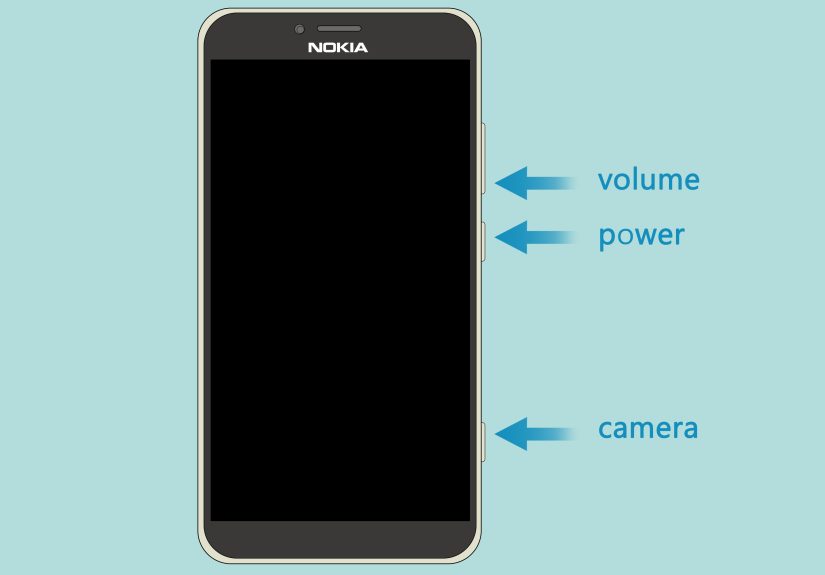
- Press and hold the Power button and the Volume Down button together.
- Keep holding them for around 10 seconds, or until the device restarts.
On some older LG models with removable batteries, another option may be to power the device off, remove the battery briefly, and then reinsert it. That said, many later LG phones use sealed batteries, so the button combo is usually the better route.
When to use it
- The screen is frozen
- The phone will not respond to taps
- The power menu will not open
- An app crash has locked the phone up completely
This method does not erase your personal data. It simply forces the device to reboot when normal controls are unavailable. In many cases, this alone fixes the problem and saves you from more aggressive reset options.
3. Reset Network Settings on an LG Phone
If your problem is related to Wi-Fi, Bluetooth, mobile data, or random connection issues, a network settings reset is often the smarter choice. This reset targets communication settings without touching your photos, apps, or documents.
What it resets
- Saved Wi-Fi networks and passwords
- Bluetooth pairings
- Mobile network settings
- Some VPN or related connectivity settings
Typical steps
- Open Settings.
- Go to System, General, or General management depending on the model.
- Tap Restart & reset or Reset.
- Select Network settings reset.
- Confirm the reset.
When to use it
- Your LG phone will not connect to Wi-Fi
- Bluetooth accessories keep disconnecting
- Cellular data is unreliable after a software update
- You changed carriers or SIM cards and the connection feels broken
This is one of the most underrated reset options because it solves a very specific class of problems without taking a sledgehammer to everything else. If your internet is the only thing acting cursed, start here.
4. Reset All Settings or Reset App Preferences
Here is where things get interesting. Many LG phones include options like Reset settings and Reset app preferences. These are not the same as a factory reset. They are more like a system clean-up than a total wipe.
Reset all settings
This usually restores system settings to their defaults. That can include display settings, sound settings, certain default behaviors, and other phone-level preferences. Your personal files and installed apps usually stay put.
Reset app preferences
This option resets things like disabled apps, notification restrictions, default app assignments, background data limits, and permission-related behavior. Again, it usually does not delete the actual app data.
Typical steps
- Open Settings.
- Go to System or General.
- Tap Restart & reset or Reset.
- Choose Reset settings or Reset app preferences.
- Confirm your choice.
When to use it
- Notifications stopped working correctly
- A default app keeps opening the wrong thing
- System settings got changed and now the phone feels off
- You want a clean slate without deleting personal data
If a normal restart is too mild and a factory reset is too intense, this is the useful middle ground. It is the “let’s calm down and fix the settings first” option.
5. Factory Reset an LG Phone
A factory reset is the big one. This reset removes personal data from the device and returns the phone to its original software state. Use it when major software problems will not go away, when you are selling the phone, or when you want to start fresh because the device has become a digital junk drawer.
Option A: Factory reset through Settings
- Open Settings.
- Go to System, General, or General management.
- Tap Restart & reset, Reset, or Backup & reset.
- Select Factory data reset.
- Review the warning information.
- Tap Reset phone, Delete all, or the equivalent option on your model.
Option B: Hard reset with hardware buttons
If your LG phone is locked up, will not boot properly, or you cannot access Settings, you may need a hard reset using the hardware keys.
- Power off the phone.
- Press and hold Volume Down and Power at the same time.
- When the LG logo appears, release the Power button briefly, then press and hold it again while still holding Volume Down.
- When the Factory data reset screen appears, use the volume keys to highlight Yes.
- Press the Power button to confirm.
- Confirm again if prompted.
When to use a factory reset
- The phone is severely lagging or crashing constantly
- You are dealing with persistent malware-like behavior or software corruption
- You are giving the phone away or selling it
- You forgot your settings layout and want a complete fresh start
A factory reset is powerful, but it should not be your first move. Use it when smaller resets fail or when you intentionally want to wipe the device clean.
Bonus: What If Your LG Phone Is Lost?
If your LG phone is lost or stolen, you may be able to erase it remotely through Google’s device-finding tools. This is not one of the five main reset methods because it is more of an emergency move than a routine troubleshooting step, but it is worth knowing.
A remote erase can protect your data if you are sure the phone is not coming back. Just remember: once the device is erased remotely, location tracking may no longer be available afterward. In other words, this is the “last resort” button, not the “maybe it fell behind the couch” button.
Common Questions About Resetting an LG Phone
Will resetting my LG phone delete everything?
No. A normal restart, force restart, network reset, and reset-all-settings option usually do not erase personal files. A factory reset does.
What is the difference between a soft reset and a hard reset?
A soft reset usually means a simple restart. A hard reset typically means a factory reset performed through recovery or hardware buttons.
Why is my LG phone still asking for my Google account after a factory reset?
That is a normal security step on many Android phones. If the device was previously linked to a Google account, you may need to sign in with that same account during setup after the reset.
Conclusion
When your phone starts acting up, knowing how to reset an LG phone the right way can save time, stress, and sometimes your data. The trick is choosing the correct reset for the problem. Start small with a normal restart. Move to a force restart if the phone is frozen. Try a network reset for connectivity issues. Use reset all settings when system behavior feels messy. And bring out the LG factory reset only when you truly need a clean slate.
In short, not every problem requires the digital equivalent of moving to a cabin in the woods and changing your name. Sometimes your LG phone just needs a nap. Sometimes it needs therapy. And sometimes, yes, it needs the full reset treatment.
Real-World Experiences With Resetting an LG Phone
In real life, most people do not wake up excited to search for ways to reset an LG phone. They end up here because something has gone sideways. Maybe the phone froze during an update. Maybe Wi-Fi suddenly stopped connecting even though every other device in the house was happily online. Maybe the battery started draining fast, apps kept crashing, or the phone became so slow it felt like it was loading each tap by carrier pigeon.
One common experience is the “everything was fine yesterday” problem. An LG Stylo owner might notice the phone lagging badly after installing a new app or system update. In cases like that, a simple restart or force restart often fixes the issue right away. It feels almost insulting when the solution is that basic, but sometimes the phone just needs a clean reboot to stop tripping over its own temporary processes.
Another very common story involves network issues. Someone changes SIM cards, travels, updates Android, or reconnects to a router, and suddenly the phone refuses to behave. Wi-Fi drops. Bluetooth will not pair. Mobile data vanishes like it owes rent. A network settings reset is often the hero in that situation because it clears out broken connection data without deleting personal content. People are usually relieved when this works because it means no app reinstall marathon and no photo panic.
Then there is the user who has changed so many settings over time that the phone feels cursed. Notifications are weird, default apps open the wrong files, background restrictions are all over the place, and nobody remembers which switch caused what. That is where reset all settings or reset app preferences becomes useful. It is the reset for people who want order restored without burning the house down.
The factory reset stories are usually more dramatic. A person plans to sell an old LG phone, or the device keeps boot-looping, freezing, or crashing after every unlock. In those cases, a full wipe can be the right call. The experience is usually smooth if the owner backed up data first and remembered the Google account tied to the phone. It becomes much less smooth when someone resets first and asks account questions later. That is how a five-minute cleanup turns into a long afternoon with password recovery screens and regret.
The biggest lesson from real users is simple: the best reset is the smallest one that solves the problem. Start light. Escalate only when needed. Your future self, your photo gallery, and your blood pressure will appreciate the strategy.