Table of Contents >> Show >> Hide
- What Does “Blocking Someone on YouTube” Actually Mean?
- How to Block Someone on YouTube Mobile
- How to Block Someone on YouTube Desktop
- How to Unblock or Unhide Someone on YouTube
- Can You Block Someone From Watching Your YouTube Videos?
- How to Stop Seeing a YouTube Channel in Recommendations
- When Should You Report Someone Instead of Blocking?
- Troubleshooting: Why Can’t I Find the Block Button?
- Best Practices for Safer YouTube Moderation
- Personal Experience: What Blocking Someone on YouTube Feels Like in Real Use
- Conclusion
- SEO Tags
Need to stop someone from commenting on your YouTube channel, bothering you in live chat, or popping up in your mentions? Good news: YouTube gives you several ways to reduce unwanted contact. Slightly confusing news: the exact feature you need may be called “Block,” “Hide user from channel,” “Report,” or “Don’t recommend channel,” depending on where you are in the app.
In other words, blocking someone on YouTube is not always a big red button labeled “Make This Person Disappear Forever.” That would be too easy, and apparently the internet is not built for easy. Instead, YouTube separates blocking into different situations: hiding a user from your channel, blocking someone from a mention notification, moderating live chat, reporting abusive behavior, and cleaning up recommendations.
This guide explains how to block someone on YouTube on mobile and desktop, what actually happens after you do it, how to unblock or unhide someone, and which option to use in real-life situations.
What Does “Blocking Someone on YouTube” Actually Mean?
Before tapping buttons like a digital ninja, it helps to understand what YouTube means by “block.” On many social platforms, blocking someone prevents them from seeing your profile, messaging you, commenting on your posts, and interacting with you. YouTube is different. Because most YouTube videos are public by default, “blocking” usually does not stop someone from viewing a public video.
For creators, the most important feature is Hide user from channel. When you hide someone from your channel, their comments no longer appear publicly on your videos, live streams, Community posts, or in your YouTube Studio comments area. The person is not notified, which makes it a quiet moderation tool. Think of it as putting their comments into a soundproof box: they may still type, but your audience does not have to hear the keyboard concert.
YouTube also has a separate block option in certain places, such as mention notifications and live chat interactions. For viewers who are tired of seeing a channel in recommendations, the better option may be Don’t recommend channel, which affects your own homepage suggestions rather than the creator’s ability to comment.
Use the Right Tool for the Right Problem
- Someone is leaving rude comments on your videos: Use “Hide user from channel.”
- Someone mentioned you and you want to block them from that mention flow: Use “Block this user” from the mention notification.
- Someone is causing trouble in live chat: Use live chat moderation tools such as hide, timeout, or block.
- You do not want a channel recommended to you: Use “Don’t recommend channel.”
- Someone violates YouTube policies: Report the video, channel, comment, or live chat message.
How to Block Someone on YouTube Mobile
The YouTube mobile app is where most people run into trouble first. You are scrolling, someone leaves a weird comment, and suddenly your peaceful snack break has turned into a moderation mission. Here is how to handle it.
Method 1: Hide a User From Your Channel Through a Comment
This is the best method if you own or manage a YouTube channel and someone has commented on your video.
- Open the YouTube app on your iPhone, iPad, or Android device.
- Sign in to the account connected to your YouTube channel.
- Go to the video where the person commented.
- Find the comment from the user you want to block or hide.
- Tap the three-dot menu next to the comment.
- Select Hide user from channel.
- Confirm the action if YouTube asks you to.
After that, their future comments on your channel will not be visible to the public. YouTube may also hide their previous comments on your videos, although older comments can take some time to disappear everywhere.
Method 2: Hide a User From Their Channel Page
If you can find the person’s channel page, you may also be able to hide them directly from there.
- Open the YouTube app.
- Tap the user’s profile picture, handle, or channel name.
- Go to their channel page.
- Tap the three-dot menu in the upper-right corner.
- Choose Hide user from my channel if that option appears.
- Confirm your choice.
If you do not see the same wording, do not panic. YouTube changes labels and layouts from time to time. Some accounts may show “Report,” “Share,” or other options depending on the channel page, device, app version, and region. When in doubt, the most reliable creator method is usually hiding the user from a comment or adding the user’s channel URL in YouTube Studio.
Method 3: Block Someone From a Mention Notification
If someone mentions your channel and you want to block that user from the mention notification area, use this method:
- Open the YouTube app and make sure you are signed in.
- Tap the Notifications icon.
- Go to Mentions.
- Find the mention from the person you want to block.
- Tap the More menu next to the notification.
- Select Block this user.
- Tap Block to confirm.
This is useful when someone is trying to pull you into unwanted public attention. It is not the same as hiding a commenter from your channel, so choose the tool based on the problem you are solving.
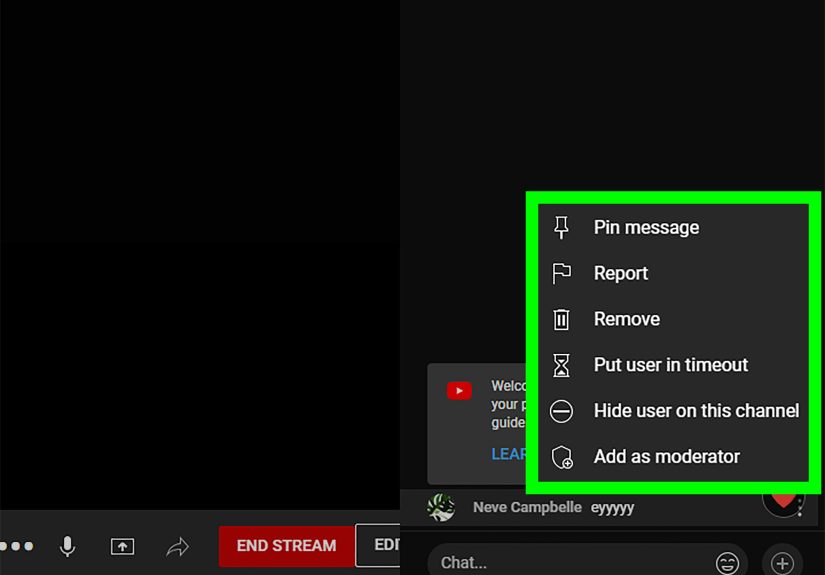
Method 4: Block or Hide Someone in YouTube Live Chat
Live chat can be fun, chaotic, helpful, hilarious, and occasionally as messy as a group project with no group leader. If someone is spamming or harassing people during a live stream, you can act quickly.
- Open the live stream in the YouTube app.
- Tap the message from the viewer you want to moderate.
- Select the available action, such as Block, Hide user, or another moderation option.
- Confirm the action if prompted.
Creators and moderators may also be able to place users in timeout, delete messages, or hide the user from the channel. For repeated disruption, hiding the person from the channel is usually stronger than deleting one message at a time.
How to Block Someone on YouTube Desktop
Desktop gives you more room to work and, in many cases, better access to YouTube Studio. If you are serious about channel moderation, a laptop or desktop browser is often the cleanest route.
Method 1: Hide a User From a Comment on Desktop
- Go to YouTube.com in your browser.
- Sign in to the account that owns or manages your channel.
- Open the video where the unwanted comment appears.
- Find the comment from the user you want to block from commenting publicly.
- Click the three-dot menu beside the comment.
- Select Hide user from channel.
This hides that user’s comments from your channel audience. They will not receive a notification, which helps you avoid turning a moderation decision into a dramatic sequel nobody asked for.
Method 2: Hide a User in YouTube Studio
This method is excellent when you already have the person’s channel URL or want to manage hidden users more carefully.
- Find the user’s channel URL from their channel page.
- Go to YouTube Studio.
- In the left menu, click Settings.
- Select Community.
- Find the Hidden users box under the automated filters or user management area.
- Paste the user’s channel URL into the box.
- Click Save.
This is one of the most reliable ways to block someone from publicly commenting on your channel. It is also useful if you are managing a growing channel and need a cleaner moderation workflow than chasing comments one by one.
Method 3: Hide a User From a Community Post
If someone is causing problems in your YouTube Community area, you can hide them from there too.
- Go to your YouTube channel on desktop.
- Open your Community section.
- Find the post or comment from the user.
- Click the More menu.
- Select Hide from channel or the closest available hiding option.
Hiding someone from your Community applies across your whole channel, not just one post. That means you do not need to repeat the action on every video like you are playing moderation whack-a-mole.
Method 4: Hide Someone From Live Chat on Desktop
During a live stream, desktop moderation can be faster and more precise.
- Open your live chat feed.
- Find the message from the viewer.
- Hover over the message and click the More menu.
- Choose Hide user, Put user in timeout, or another available moderation action.
If the person is repeatedly disruptive, hiding them from the channel is usually better than deleting individual messages. If they are simply overexcited, a timeout may be enough. Moderation is not about smashing every button; it is about choosing the smallest tool that solves the problem.
How to Unblock or Unhide Someone on YouTube
Maybe you hid the wrong person. Maybe someone apologized. Maybe your cat walked across the keyboard and became the acting head of channel moderation. Whatever happened, you can reverse the decision in YouTube Studio.
Unhide a User in YouTube Studio
- Open YouTube Studio on desktop.
- Click Settings in the left menu.
- Select Community.
- Find the Hidden users box.
- Locate the user you want to unhide.
- Remove them from the list.
- Click Save.
After you remove someone from the hidden users list, their future comments can appear again. However, comments that were already hidden may not automatically reappear. If a specific comment matters, you may need to manage it separately in your comments area.
Unblock Someone From Google’s Block List
For certain YouTube block actions, especially those tied to mentions or broader Google account blocking, you may need to visit your Google account block list. From there, you can remove a blocked user if the option is available. This is different from YouTube Studio’s hidden users list, so check both places if you are not sure which feature you used.
Can You Block Someone From Watching Your YouTube Videos?
For public videos, usually no. Hiding a user from your channel does not create a private wall around your content. If your video is public, the person may still be able to watch it, especially if they are signed out or using another account.
If privacy is your main concern, consider changing the video’s visibility instead:
- Public: Anyone can watch and search for the video.
- Unlisted: Anyone with the link can watch, but it does not appear publicly in search or on your channel page.
- Private: Only specific invited Google accounts can watch.
For creators dealing with one annoying commenter, hiding the user is usually enough. For sensitive personal videos, private or unlisted visibility may be safer than relying on comment moderation tools.
How to Stop Seeing a YouTube Channel in Recommendations
Sometimes you are not a creator trying to block a commenter. You are just a viewer who keeps seeing the same channel in your feed and would like YouTube’s recommendation engine to take a hint. A loud hint. Preferably with a tiny megaphone.
To reduce recommendations from a channel:
- Find a video from that channel on your YouTube Home page or recommendations.
- Click or tap the three-dot menu next to the video.
- Select Don’t recommend channel.
This does not block the channel from all of YouTube. You may still find it in search, links, playlists, or external embeds. But it tells YouTube that you do not want that channel showing up in your recommendations.
Use “Not Interested” for Individual Videos
If you do not dislike the whole channel but dislike one specific video topic, choose Not interested instead. For example, maybe you enjoy a tech channel’s phone reviews but not its 47-minute rant about desk lamps. Use “Not interested” for the lamp saga and save “Don’t recommend channel” for channels you truly want out of your feed.
When Should You Report Someone Instead of Blocking?
Blocking or hiding is best for personal moderation. Reporting is best when the content may violate YouTube’s rules. If someone posts harassment, hate speech, scams, threats, impersonation, dangerous misinformation, privacy violations, or other abusive content, report it.
Reporting is anonymous, so the other user does not see who submitted the report. YouTube reviews reported content and may remove it, age-restrict it, or take other action if it violates platform policies. Hiding someone protects your channel space; reporting helps protect the wider community.
Practical Rule of Thumb
If the person is merely annoying, hide them. If they are breaking rules or targeting people with harmful behavior, report them. If they are doing both, you can do both. That is not being dramatic; that is basic internet housekeeping.
Troubleshooting: Why Can’t I Find the Block Button?
If you cannot find a “Block user” button, you are not alone. YouTube’s interface changes across devices, account types, app versions, and locations. The feature you are looking for may appear as “Hide user from channel,” “Hide user from my channel,” “Block this user,” or it may only appear in a specific place, such as a comment, live chat, mention notification, or YouTube Studio.
Try These Fixes
- Update the YouTube app: Old versions may display different menus.
- Use desktop YouTube Studio: It usually provides more moderation controls.
- Start from the user’s comment: The comment menu is often the fastest route to “Hide user from channel.”
- Copy the user’s channel URL: Then add it to Hidden users in YouTube Studio.
- Check that you are using the correct channel account: If you manage multiple channels, switch to the right one first.
Example: Blocking a Repeat Commenter
Imagine you run a cooking channel, and the same viewer comments “your soup looks like wallpaper paste” under every video. Once? Maybe they need soup therapy. Ten times? Time to act. Go to one of their comments, tap or click the three-dot menu, and choose “Hide user from channel.” Their future comments will not appear publicly, and your soup community can return to discussing garlic like civilized people.
Example: Cleaning Up Your Recommendations
Suppose YouTube keeps recommending a drama channel you watched once by accident. Do not hide the user from your channel unless they are commenting on your content. Instead, use “Don’t recommend channel” from the video menu. That tells YouTube the issue is your viewing feed, not your comment section.
Best Practices for Safer YouTube Moderation
Blocking someone on YouTube should be part of a larger moderation strategy, especially if you publish videos regularly. The goal is not to create a comment section where everyone agrees with you. Healthy disagreement can make a channel better. The goal is to prevent spam, harassment, personal attacks, and low-quality noise from taking over.
Set Clear Channel Guidelines
If your channel has an active audience, write simple community expectations. For example: “Debate the idea, not the person,” “No spam links,” and “Keep comments family-friendly.” Clear rules make moderation feel less random and more consistent.
Use Blocked Words Carefully
YouTube Studio lets creators manage blocked words for comments, live chat, and Community posts. This is helpful for slurs, spam phrases, suspicious links, repeated insults, or scam terms. Avoid overblocking normal words, though. If you block a common word like “bad,” you may accidentally trap harmless comments like “This recipe is so good it made my bad day better.”
Hold Comments for Review
If your channel receives lots of heated discussion, consider holding potentially inappropriate comments for review. This gives you a moderation buffer before comments go public. It is slower than open comments, but it can protect your community during sensitive topics, product launches, controversies, or live events.
Do Not Feed the Trolls
Responding emotionally to every rude comment can turn a small problem into a full-time unpaid internship in chaos management. Hide, report when needed, and move on. Your best content deserves more energy than someone whose hobby is typing in all caps.
Personal Experience: What Blocking Someone on YouTube Feels Like in Real Use
The first time you block or hide someone on YouTube, it can feel strangely serious. One moment you are reading comments with a cup of coffee, and the next you are making a moderation decision like the sheriff of a very pixelated town. But in practice, the process is usually less dramatic than it sounds. Most creators eventually learn that hiding a user is not about being thin-skinned. It is about protecting the space where your audience gathers.
From a practical standpoint, the best experience comes from acting early but not impulsively. If someone leaves one sharp comment, it may be worth ignoring. People have bad days. Sometimes viewers misunderstand a joke, misread the video, or type faster than their manners can keep up. But if a user repeatedly derails conversations, insults other viewers, posts spam, or tries to provoke a fight under every upload, hiding them is a reasonable choice. You are not deleting criticism; you are removing behavior that makes the community worse.
On mobile, the process feels fastest when you start from the comment itself. Tap the three-dot menu, choose the hide option, and you are done. This is useful when you are away from your desk and need a quick fix. The downside is that mobile menus can feel cramped, and YouTube sometimes changes where options appear. If you manage a channel seriously, desktop YouTube Studio feels more dependable. It gives you a central place to review hidden users, adjust comment settings, manage blocked words, and save changes with more confidence.
One important lesson is to document patterns before taking bigger action. If someone is posting abusive or policy-breaking content, take screenshots or note the context before reporting. You do not need to become a detective with a corkboard and red string, but having basic context helps you make calmer decisions. For normal spam or trolling, hiding is usually enough. For harassment, impersonation, threats, scams, or privacy issues, reporting is the better route.
Another useful habit is reviewing your hidden users list occasionally. Channels change, people change, and sometimes you may hide someone by mistake. A quarterly cleanup can help you keep your moderation list accurate. That said, do not feel obligated to unhide someone just because time has passed. Your channel is your space. If a user repeatedly made it worse, leaving them hidden is perfectly reasonable.
The healthiest mindset is this: blocking someone on YouTube is not a personal failure, and it is not a victory lap either. It is maintenance. Just like deleting spam emails, locking your front door, or muting a group chat that thinks 2 a.m. is the perfect time for memes, it is a small boundary that helps you keep using the platform without unnecessary stress. The best YouTube communities are not the ones with zero disagreement. They are the ones where disagreement does not turn into a food fight in the comments.
Conclusion
Learning how to block someone on YouTube is really about learning which moderation tool fits your situation. If you are a creator dealing with unwanted comments, use Hide user from channel from a comment or add the user’s channel URL in YouTube Studio. If someone bothers you through mentions, use the mention notification block option. If a viewer disrupts live chat, use live moderation tools. If a channel simply annoys your homepage, choose Don’t recommend channel.
The most important thing to remember is that YouTube blocking is not always a complete viewing ban. In most creator situations, it controls comments and interaction visibility, not access to public videos. For serious abuse, reporting is still the right move. For everyday trolls, hiding is often enough. Your channel does not need to be a free microphone for every person with Wi-Fi and a bad attitude.