Table of Contents >> Show >> Hide
- What Is Google Autofill on Android?
- How Google Autofill Works for Apps
- How to Turn On Google Autofill for Apps on Android
- How to Manage Saved Passwords in Google Password Manager
- How to Delete Incorrect Autofill Suggestions
- How to Turn Auto Sign-In On or Off
- How to Manage Passkeys on Android
- How to Stop Google from Saving Passwords for Certain Apps
- How to Change Autofill from Google to Another Password Manager
- How to Use Google Autofill Inside Apps
- Best Security Settings for Google Autofill
- Common Google Autofill Problems and Fixes
- Practical Examples of Managing Google Autofill
- Privacy Tips Before Using Autofill Everywhere
- My Real-World Experience Managing Google Autofill on Android
- Conclusion
Google Autofill on Android is one of those features you barely notice when it works perfectlyand immediately blame the entire universe for when it does not. One minute your banking app politely offers your saved username, the next minute you are squinting at the keyboard, typing a 19-character password you created during a burst of “I should be more secure” optimism. Fortunately, learning how to manage Google Autofill for apps on Android is much easier than recovering from the emotional damage of mistyping your password five times.
At its best, Google Autofill helps you sign in to apps faster, fill saved passwords, use passkeys, reduce typing mistakes, and keep credentials connected to your Google Account. It works through Google Password Manager, which is built into Android and Chrome, and it relies on Android’s autofill system to communicate with apps that request login or form information. In plain English: Android provides the road, Google Password Manager provides the car, and your saved passwords are the passengers wearing seatbelts.
This guide explains how to turn Google Autofill on or off, choose it as your preferred autofill service, manage saved app passwords, delete outdated suggestions, use passkeys, improve security, and troubleshoot common problems. Whether you use a Google Pixel, Samsung Galaxy, Motorola, OnePlus, or another Android phone, the exact menu names may vary slightly, but the core settings are similar.
What Is Google Autofill on Android?
Google Autofill is Android’s built-in way to fill saved information in apps and websites. For app logins, the most important part is Google Password Manager, which stores passwords and passkeys in your Google Account and makes them available on devices where you are signed in. When you open an app and tap a username, email, password, or passkey field, Android checks your chosen autofill service and offers matching saved credentials.
Google Autofill can help with several types of information, including:
- Saved usernames and passwords for apps and websites
- Passkeys for supported apps and services
- Addresses and contact information in some contexts
- Payment-related autofill in Chrome or Google services
- Auto sign-in for saved credentials when enabled
For apps, the most common use is simple: you open an app, tap the login field, and Google suggests the correct saved account. You confirm with your screen lock, fingerprint, face unlock, or device PIN when required, and Android fills the login details. That is the dream. The nightmare is when it suggests your old email from 2014. We will fix that too.
How Google Autofill Works for Apps
Android includes an Autofill Framework that lets apps ask an autofill service for relevant saved data. Google Password Manager can act as that service. App developers must design their login fields properly so Android can understand what should be filled. That is why Autofill may work beautifully in one app but act shy in another.
For example, a shopping app with clearly labeled email and password fields may trigger Google Autofill immediately. A poorly designed app with custom login boxes may not show suggestions until you tap the field, long-press it, or use the keyboard’s password icon. In some rare cases, the app simply does not cooperate. This is not always your fault, which is refreshing.
How to Turn On Google Autofill for Apps on Android
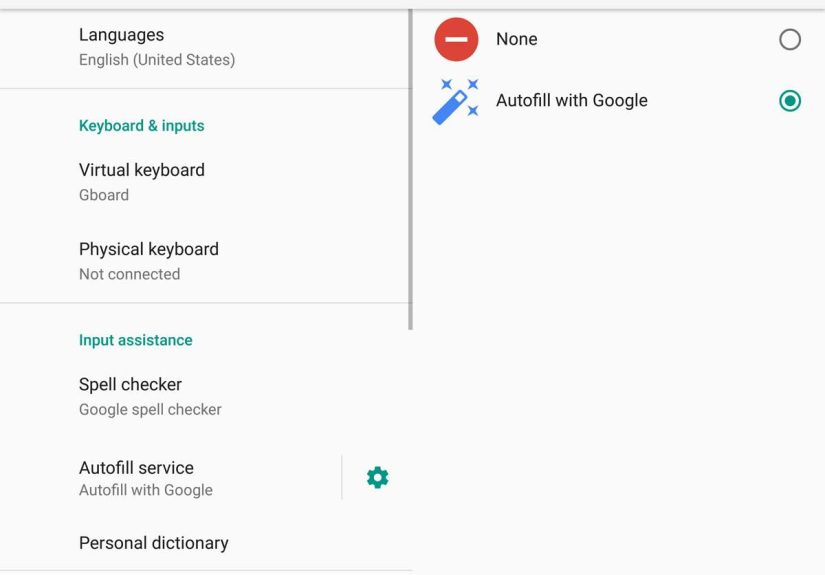
The fastest way to manage Google Autofill is through Android Settings. Menu names differ by device and Android version, but these steps work for many modern phones.
On Many Android Phones
- Open the Settings app.
- Search for Autofill, Password Manager, or Passwords, passkeys & autofill.
- Tap the result related to autofill or password services.
- Choose Google or Autofill with Google as your preferred service.
- Confirm the change if Android asks whether you trust the service.
On Google Pixel Phones
On recent Pixel devices, try this path:
- Open Settings.
- Tap Passwords, passkeys & accounts or search for it.
- Find Preferred service.
- Tap Change.
- Select Google.
On Samsung Galaxy Phones
Samsung often places autofill settings under General Management:
- Open Settings.
- Tap General management.
- Tap Passwords, passkeys, and autofill.
- Choose Preferred service.
- Select Google if you want Google Password Manager to fill apps.
Samsung phones may also offer Samsung Pass as an autofill option. If your saved passwords are mainly in Google Password Manager, choosing Google prevents the “Why is my phone acting like it has never met me?” problem.
How to Manage Saved Passwords in Google Password Manager
Once Google Autofill is enabled, the next step is cleaning up your saved passwords. Old logins, duplicate entries, and incorrect usernames can make Autofill feel chaotic. Think of this as spring cleaning, except the closet is digital and less likely to contain a mysterious cable from 2011.
Manage Passwords from Android Settings
- Open Settings.
- Search for Password Manager.
- Select Google Password Manager.
- Browse or search for the app or website.
- Tap an entry to view, edit, or delete it.
Manage Passwords from Chrome on Android
- Open the Chrome app.
- Tap the three-dot menu.
- Tap Settings.
- Tap Google Password Manager.
- Select a saved login to edit or remove.
You can also visit Google Password Manager in a browser while signed in to your Google Account. This is useful if you prefer managing entries on a larger screen. Editing a typo on a desktop keyboard is much less dramatic than doing it with thumbs while standing in line for coffee.
How to Delete Incorrect Autofill Suggestions
If Android keeps suggesting the wrong login for an app, the saved entry may be outdated, duplicated, or matched to the wrong website or app. To remove it:
- Open Google Password Manager.
- Search for the app name, website, or username.
- Open the incorrect saved password.
- Tap Delete if you no longer need it.
- Tap Edit if the entry is correct but needs updating.
If you see multiple saved passwords for the same account, keep the current one and delete the outdated versions. Autofill is smart, but it is not a mind reader. If you leave six versions of the same login lying around, it may politely offer all six like a waiter with too many dessert options.
How to Turn Auto Sign-In On or Off
Auto sign-in lets Google sign you in automatically with saved credentials when possible. This is convenient, but some users prefer to confirm before logging in, especially for banking, school, work, or shared-device situations.
To Manage Auto Sign-In
- Open Settings.
- Search for Password Manager.
- Open Google Password Manager.
- Tap Settings.
- Turn Auto sign-in on or off.
If you want maximum convenience, leave it on. If you want more control, turn it off. For sensitive accounts, the extra tap is a small price to pay for peace of mind.
How to Manage Passkeys on Android
Passkeys are a newer sign-in method designed to be easier and more secure than traditional passwords. Instead of typing a password, you confirm your identity with your device screen lock, fingerprint, face unlock, or PIN. Many major services now support passkeys, and Google Password Manager can store and sync them for supported accounts.
To View or Manage Passkeys
- Open Google Password Manager.
- Look for entries labeled as passkeys, or use available filters if shown.
- Select a saved passkey to review its details.
- Delete passkeys you no longer use or do not recognize.
Some services may automatically offer to create a passkey when you already have a saved password. If you prefer not to use automatic passkey creation, check Google Password Manager settings for an option related to automatic passkey creation and turn it off.
How to Stop Google from Saving Passwords for Certain Apps
Sometimes you do not want Google to save a password for a specific app. Maybe it is a one-time login, a temporary account, or an app you use for testing. When Google asks whether to save a password, you can decline. If you later change your mind, Google Password Manager includes a section for declined sites and apps.
To Unblock a Declined App
- Open Google Password Manager.
- Tap Settings.
- Find Declined sites and apps.
- Remove the app or site from the declined list.
- Log in again and choose to save the password when prompted.
This is useful when you accidentally tap “Never” while trying to tap “Save.” It happens. Phones are slippery, thumbs are ambitious, and pop-ups love appearing at exactly the wrong moment.
How to Change Autofill from Google to Another Password Manager
You are not locked into Google Autofill. Android allows you to choose another preferred service, such as 1Password, Bitwarden, Keeper, Dashlane, or another supported password manager. You can usually use only one primary autofill service at a time, so choose the one that stores your most accurate credentials.
To Switch Autofill Services
- Open Settings.
- Search for Autofill or Passwords, passkeys & autofill.
- Tap Preferred service.
- Select your password manager.
- Confirm that you trust the app.
Only choose a password manager you trust. Autofill services can see the fields where they are asked to fill data, so this is not the place to experiment with a random app that has three reviews and an icon that looks like it was designed during a lunch break.
How to Use Google Autofill Inside Apps
After Google is selected as your preferred autofill service, using it is simple:
- Open the app you want to sign in to.
- Tap the username, email, or password field.
- Look above the keyboard or near the login field for a Google Password Manager suggestion.
- Tap the correct account.
- Confirm your identity if prompted.
- Sign in.
If no suggestion appears, tap the password field again, check the keyboard toolbar for a key icon, or long-press the field to see whether autofill options appear. Some apps need a little encouragement, like cats, printers, and relatives who say they are “almost ready.”
Best Security Settings for Google Autofill
Convenience is great, but passwords deserve better security than “hope nobody notices.” Use these settings and habits to make Google Autofill safer.
Use a Strong Screen Lock
Google Autofill often depends on your Android screen lock to confirm sensitive actions. Use a strong PIN, password, fingerprint, or face unlock. Avoid simple PINs like 1234, 0000, or your birthday. Those are not passwords; they are welcome mats.
Run Password Checkup
Google Password Manager includes Password Checkup, which can warn you about compromised, reused, or weak passwords. Run it regularly and update risky logins. If the same password appears across multiple apps, replace it with unique passwords.
Use Passkeys Where Available
When an app supports passkeys, consider using them. Passkeys reduce the need to type passwords and are designed to be more resistant to phishing. You still need to protect your Google Account and device, but passkeys can make everyday sign-ins smoother and safer.
Keep Google Play Services and Chrome Updated
Autofill depends on Android system components, Google Play Services, Chrome, and app updates. If Autofill suddenly behaves strangely, update your apps and restart your phone before assuming the device is haunted.
Common Google Autofill Problems and Fixes
Problem: Autofill Does Not Appear in Apps
First, confirm Google is selected as your preferred autofill service. Then update Google Play Services, Chrome, the Google app, and the app where Autofill fails. Restart your phone. If the issue affects only one app, that app may not fully support Android Autofill.
Problem: Google Shows the Wrong Account
Open Google Password Manager and search for the app or website. Delete outdated logins and update the correct one. Also check whether the saved entry is tied to a related website. Some apps use the same login system as their website, so the entry may appear under the site name rather than the app name.
Problem: Autofill Works in Chrome but Not Apps
Chrome and Android app autofill can use related but separate settings. Make sure Google is chosen as the Android preferred autofill service, not just enabled inside Chrome. Also check whether the app has been declined in Google Password Manager.
Problem: A Third-Party Password Manager Conflicts with Google
If you use another password manager, choose one main autofill service. Having multiple services, browser extensions, keyboards, and accessibility-based fill tools active can create duplicate suggestions or inconsistent behavior. Pick your primary manager and disable extra autofill prompts where possible.
Problem: Autofill Suggestion Appears but Does Not Fill
This often happens when an app uses custom fields or blocks autofill. Update the app, clear its cache if needed, and try tapping the field again. If the problem remains, manually copy the password from Google Password Manager and consider reporting the issue to the app developer.
Practical Examples of Managing Google Autofill
Example 1: Updating a Changed App Password
Suppose you reset your streaming app password on your laptop. Later, the Android app keeps filling the old password. Open Google Password Manager, search for the streaming service, tap the saved login, and edit the password. The next time you open the app, Google Autofill should suggest the updated version.
Example 2: Removing an Ex’s Shared Account
If Google keeps suggesting an account you no longer use, delete it from Password Manager. This is good digital hygiene and also prevents awkward little reminders from popping up when you are simply trying to order pizza.
Example 3: Switching from Samsung Pass to Google
On a Samsung Galaxy phone, you may find Samsung Pass selected as the default service. If your passwords are in Google, go to Settings, then General management, then Passwords, passkeys, and autofill. Change the preferred service to Google. After that, app login suggestions should come from Google Password Manager.
Privacy Tips Before Using Autofill Everywhere
Autofill is useful, but it should not become a “fill everything everywhere without thinking” button. Be careful when logging in on shared devices, lending your phone to someone, or installing unfamiliar apps. Keep your Google Account protected with two-step verification, review saved passwords regularly, and remove logins you no longer need.
Also, avoid saving passwords for accounts that do not belong to you. If a friend signs in to an app on your phone, do not save their login unless they explicitly ask and understand what that means. Otherwise, your phone becomes a tiny vault of social complications.
My Real-World Experience Managing Google Autofill on Android
Managing Google Autofill on Android feels simple once everything is set up, but the first-time experience can be confusing because Android settings are not identical across brands. On a Pixel-style phone, the path often feels direct: search for Password Manager or Autofill, choose Google, and move on with your life. On Samsung, you may need to pass through General management and decide between Google and Samsung Pass. Neither path is difficult, but the wording can make people think they are in the wrong menu.
The most useful habit I have learned is to search inside Settings instead of manually hunting through categories. Typing “autofill,” “password,” or “passkeys” into the Settings search bar saves time and prevents the classic Android menu maze experience. This is especially helpful when helping someone else with a different phone brand. The setting exists; it may simply be wearing a different hat.
Another practical lesson is that Google Autofill works best when Google Password Manager is tidy. If you have old passwords, duplicate accounts, or saved logins from years ago, Autofill may feel unreliable. The feature is only as organized as the data behind it. A five-minute cleanup can make a huge difference. Delete accounts you do not use, update changed passwords, and run Password Checkup. It is like cleaning your desk, except no one finds a dried-out pen under a receipt.
I have also found that app behavior varies. Major banking, shopping, travel, food delivery, and social apps usually work well with Android Autofill. Smaller or older apps may be inconsistent. Sometimes suggestions appear above the keyboard. Sometimes they appear under the login field. Sometimes you need to tap the field twice. And sometimes the app simply refuses to cooperate, probably because its login screen was built with the emotional energy of a folding chair.
For families or less technical users, I recommend turning off auto sign-in at first. This gives the user a moment to confirm which account is being used. Once they feel comfortable, they can turn auto sign-in back on for convenience. For sensitive accounts, keeping confirmation enabled is a smart compromise between speed and control.
Passkeys are also becoming more important. In daily use, they feel faster than passwords because you confirm with your device lock instead of typing. However, not every app supports them yet, and people should still understand where their passkeys are stored. Google Password Manager makes them easier to manage, but it is still worth reviewing saved passkeys occasionally, especially if you test many apps or manage multiple accounts.
My final experience-based tip is simple: when Autofill breaks, update first and panic later. Update Chrome, Google Play Services, Google Password Manager-related components, and the app itself. Then restart the phone. Many Autofill issues disappear after updates because the feature depends on several moving parts. If the problem continues in only one app, the app is probably the culprit. If it happens everywhere, your preferred autofill service setting is the first place to check.
Conclusion
Learning how to manage Google Autofill for apps on Android gives you faster sign-ins, fewer typing errors, better password organization, and stronger control over your saved credentials. The key is choosing Google as your preferred autofill service, keeping Google Password Manager clean, reviewing saved passwords and passkeys, and using security features like screen lock, Password Checkup, and two-step verification.
Autofill should feel like a helpful assistant, not a chaotic raccoon throwing old usernames at your login screen. Once you clean up your saved data and understand where the settings live, Google Autofill becomes one of Android’s most convenient everyday tools.
Note: This article is based on current Android, Google Password Manager, Chrome for Android, Samsung Galaxy, and password-manager guidance. Menu names may vary slightly depending on Android version, phone brand, region, and software updates.