Table of Contents >> Show >> Hide
- Before You Start: What You Need
- Why Hotmail Still Works on iPhone
- How to Sync a Hotmail Account on an iPhone in 11 Easy Steps
- What to Do Right After Setup
- Common Hotmail Sync Problems on iPhone and How to Fix Them
- Apple Mail vs. Outlook App: Which One Should You Use?
- Best Practices for a Smoother Hotmail Sync Experience
- Real-World Experiences With Syncing Hotmail on an iPhone
- Final Thoughts
- SEO Tags
If you still use a Hotmail address, first of all: respect. That email has seen things. It has survived chain messages, questionable newsletter sign-ups, and at least one forgotten password era. The good news is that syncing a Hotmail account on an iPhone is still easy, even though Hotmail now lives under Microsoft’s Outlook.com universe.
The trick is knowing which option to tap, what to do when Microsoft asks for verification, and how to fix the usual “why is my inbox acting dramatic?” moments. Even better, newer iPhones use a slightly different settings path than older tutorials on the web, which is exactly why so many people end up poking random menus like they are trying to crack a safe.
This guide walks you through the exact setup process, explains why Hotmail still works perfectly well on iPhone, shows you how to choose what you want to sync, and covers the most common fixes if your account refuses to cooperate. You will also get practical advice on whether Apple Mail or the Outlook app makes more sense for your daily routine.
Before You Start: What You Need
Before you sync your Hotmail account on an iPhone, make sure you have a few basics ready:
- Your full Hotmail email address, such as [email protected]
- Your Microsoft account password
- Your iPhone connected to Wi-Fi or mobile data
- Access to your verification method if two-step verification is turned on
- A tiny bit of patience, which is free but often in short supply
One more useful detail: if you still think of your account as “Hotmail,” that is normal. Microsoft still supports Hotmail addresses, but the sign-in system and sync tools often appear under the Outlook.com name. So if your iPhone shows Outlook.com instead of Hotmail, do not panic. Your email did not disappear into the digital void.
Why Hotmail Still Works on iPhone
Hotmail may sound like a vintage email brand, but @hotmail.com addresses are still active and supported through Microsoft’s current email infrastructure. In practical terms, that means your old Hotmail account behaves like a Microsoft email account, and your iPhone can sync it through Apple Mail using Microsoft’s sign-in flow.
That also means your account can usually sync more than just email. Depending on your settings, you may be able to sync mail, contacts, calendars, and reminders. For many users, that is the sweet spot: one sign-in, one account, and fewer excuses for missing birthday reminders.
How to Sync a Hotmail Account on an iPhone in 11 Easy Steps
-
Open the Settings app
Start on your iPhone’s home screen and tap Settings. This is the gray gear icon that holds the fate of your notifications, privacy, and now your email account.
-
Tap Apps
On newer iPhone software versions, the Mail settings live under Apps. If you are following an older guide that tells you to tap Mail directly from the main Settings screen, that guide is not completely wrong; it is just living in the past.
-
Choose Mail
Inside the Apps list, tap Mail. This is where your iPhone manages email accounts, message previews, notifications, and sync behavior.
-
Tap Mail Accounts
Next, tap Mail Accounts. This section shows every email account already connected to your iPhone. If you already have iCloud, Gmail, or another account here, your Hotmail account is about to join the party.
-
Tap Add Account
Choose Add Account. Your iPhone will display a list of email providers it can set up automatically.
-
Select Outlook.com
For a regular personal Hotmail account, tap Outlook.com. This is the correct choice for most @hotmail.com, @outlook.com, and @live.com accounts. If you use a company or school Microsoft account, that setup can be different, but for classic Hotmail users, Outlook.com is usually the right door.
-
Enter your full Hotmail address
Type your complete email address, such as [email protected], then continue. Use the full address, not just the part before the @ symbol. Yes, that sounds obvious, but every tech guide needs one obvious sentence because someone, somewhere, has absolutely tried it.
-
Enter your password
Now type your Microsoft account password. Make sure there are no accidental spaces and that your keyboard is not auto-capitalizing anything weird. A surprisingly large number of “email problems” are really just “thumb problems.”
-
Approve two-step verification if Microsoft asks
If you use two-step verification, Microsoft may send a code or prompt you to approve the sign-in. Complete that step to continue. If the screen says something like Let this app access your info?, tap Yes so Apple Mail can connect to your account properly.
-
Choose what you want to sync
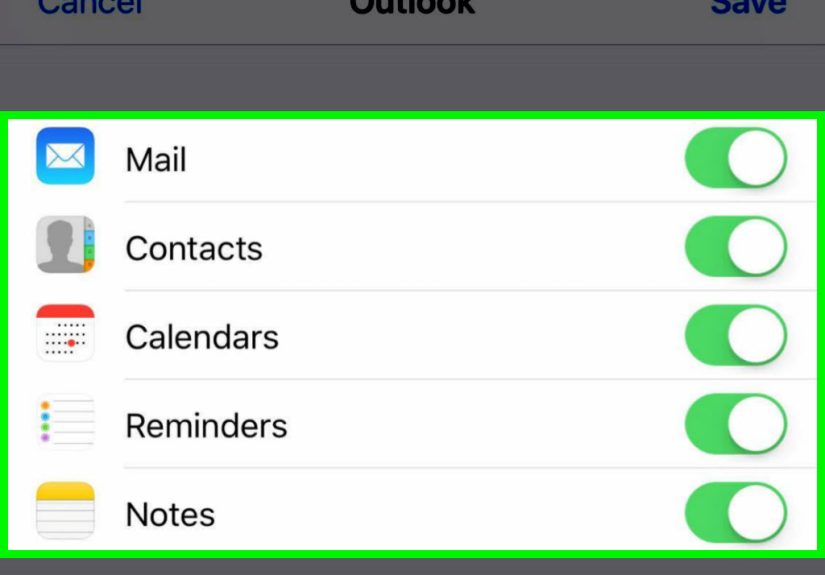
After sign-in, your iPhone will show toggles for items such as Mail, Contacts, Calendars, and Reminders. Turn on the ones you want. If you only care about email, leave Mail on and switch the others off. If you want your Hotmail calendar events and contact list available on your iPhone, keep those on too.
-
Tap Save and test the account
Tap Save, then open the Mail app. Pull down to refresh and check whether new messages appear. Send yourself a quick test email if you want extra confidence. Nothing says “setup complete” like receiving your own message five seconds later.
What to Do Right After Setup
Once your Hotmail account is added, take one extra minute to make sure the sync experience actually suits you. Adding the account is only step one. Making it work the way you want is the part people forget.
Check your fetch settings
Go to Settings > Apps > Mail > Mail Accounts > Fetch New Data. Here, you can control how often your iPhone checks for new messages if the service uses Fetch instead of Push. If new mail does not appear as quickly as you expect, this menu is worth visiting before you start blaming the phone, Microsoft, or Mercury being in retrograde.
Turn on notifications
If you want alerts when new Hotmail messages arrive, head to Settings > Notifications > Mail. You can enable alerts, badges, and sounds so your inbox does not quietly pile up while you wonder why nobody emailed back.
Decide whether Apple Mail is enough
Apple Mail is great for people who want a clean, simple built-in app. But if you prefer tighter Microsoft integration, a focused inbox, or deeper calendar features, the Outlook app is worth considering. Many users stick with Apple Mail for convenience, while others switch to Outlook for more Microsoft-friendly tools. Neither choice is wrong. Email is personal, like pizza toppings and the number of unread messages you are emotionally prepared to face.
Common Hotmail Sync Problems on iPhone and How to Fix Them
Problem 1: Your password is rejected
First, sign in to your account on the web to make sure your password still works. If the web login succeeds but the iPhone still complains, remove the account and add it again. Also check whether Microsoft is prompting for two-step verification behind the scenes.
Problem 2: Mail syncs, but slowly
This often comes down to fetch settings. If your iPhone is set to fetch less often, or only in certain conditions, your inbox may update with a delay. Adjust the fetch schedule and test again. Also make sure Low Power Mode is not quietly restricting background activity more than you expect.
Problem 3: You can receive email but cannot send it
Remove and re-add the account first, because that fixes a surprising number of send issues. If you ever need a manual setup for an edge case, Outlook.com’s standard manual settings use IMAP server outlook.office365.com on port 993 with SSL/TLS, and SMTP server smtp-mail.outlook.com on port 587 with STARTTLS. That said, most iPhone users should not need manual entry for a normal Hotmail account.
Problem 4: The account adds, but contacts or calendar do not sync
Open the account settings and make sure the toggles for Contacts and Calendars are turned on. If they are already enabled, turn them off, wait a moment, and turn them back on. Then reopen the Contacts and Calendar apps to check whether the sync catches up.
Problem 5: The Outlook.com option does not seem to work
Double-check that you selected the right provider and approved Microsoft’s permission request. For a personal Hotmail account, Outlook.com is the normal option in iPhone Mail. If your account has unusual security settings or you are dealing with a work or school Microsoft account, the setup path may differ.
Problem 6: Manual setup fails
If you are trying to add the account manually through IMAP or POP, remember that Outlook.com may require IMAP or POP access to be enabled in account settings first. Also, Microsoft now expects modern authentication for supported setups, which is another reason the standard Outlook.com sign-in option is usually easier and more reliable than manual configuration.
Apple Mail vs. Outlook App: Which One Should You Use?
If your main goal is simply to sync Hotmail on your iPhone, Apple Mail is usually the fastest and easiest option. It is already installed, it works well with iOS, and it keeps your setup simple. For many people, that is perfect.
The Outlook app, however, may be the better pick if you live inside the Microsoft ecosystem. It can feel more at home if you use Outlook calendars, Microsoft 365 tools, or multiple Microsoft accounts. It also tends to offer extra productivity features that some users love and others immediately ignore forever.
Here is the practical way to decide:
- Use Apple Mail if you want simplicity, fast setup, and a native iPhone experience.
- Use Outlook for iPhone if you want more Microsoft-focused features and tighter account integration.
You can even try both and keep the one that feels less annoying. That is a perfectly valid productivity strategy.
Best Practices for a Smoother Hotmail Sync Experience
- Keep your iPhone updated so Mail settings and authentication flows stay current.
- Use a strong Microsoft password and enable two-step verification.
- Check notification settings if you think sync is broken but messages are actually arriving silently.
- Remove and re-add the account if Mail behaves strangely after a password change.
- Be cautious with suspicious emails, even when they appear to come from familiar senders.
A secure inbox is a useful inbox. Sync is great, but not if the only thing arriving instantly is spam.
Real-World Experiences With Syncing Hotmail on an iPhone
In real-world use, syncing a Hotmail account on an iPhone is usually much less dramatic than people expect. The biggest surprise for many users is not the setup itself, but the fact that the account is no longer labeled “Hotmail” in obvious ways. Someone opens the provider list, sees Outlook.com, pauses for a few seconds, and immediately wonders if Hotmail has vanished into internet history. Then they sign in with the same old @hotmail.com address, and everything works. That moment alone causes more confusion than the actual sync process.
Another common experience is the difference between “account added” and “account feels right.” Many people finish the setup in under two minutes, open Mail, see a few messages, and assume the job is done. Later, they realize contacts are missing, calendar events are not showing, or email arrives later than expected. That is why the post-setup checks matter so much. The account may be connected, but the experience does not really feel complete until the right sync toggles and notification settings are adjusted.
Users who come from older iPhones or older online tutorials often get tripped up by the settings path. They expect to find everything directly under Mail in the main Settings menu, but newer iPhone versions place it under Apps first. That sounds minor, yet it is exactly the kind of small interface change that makes people think they are in the wrong place. Once they find the current path, the process becomes straightforward again.
There is also a very specific emotional journey attached to typing in a Hotmail password. It starts with confidence, shifts into suspicion after the first failed attempt, and ends with the realization that the issue was either an old password, an accidental capital letter, or a forgotten verification step. In other words, the iPhone is often innocent. The thumbs are the real suspects.
For users who rely on Microsoft services beyond email, the sync experience can be surprisingly useful. Having Hotmail mail, Microsoft contacts, and calendar events available on one iPhone makes daily planning smoother. A person might add the account “just for email” and then later discover that syncing calendars is what actually makes the biggest difference. Suddenly dentist appointments, work reminders, and family events appear where they should, and life gets just a little less chaotic.
At the same time, some users try Apple Mail first and eventually move to the Outlook app. Not because Apple Mail fails, but because their needs change. People who want a more Microsoft-centered workflow often prefer Outlook’s extra features, while people who want less clutter usually stay with Apple Mail. That is a normal outcome. The best setup is not the one with the most features; it is the one that makes checking email feel easy enough that you do not avoid it until 11:47 p.m.
The overall experience, then, is pretty positive: setup is quick, syncing is reliable for most users, and the biggest obstacles are usually small details rather than major technical problems. Once the account is connected correctly and the sync settings are tuned, Hotmail on iPhone feels refreshingly ordinary. And in the world of email, ordinary is a beautiful thing.
Final Thoughts
If you have been putting this off because Hotmail sounds old, Outlook.com sounds new, and iPhone settings keep moving around, here is the simple truth: syncing a Hotmail account on an iPhone is still easy. You just need the right provider option, your Microsoft login, and a quick check of your sync settings once the account is added.
For most people, the built-in Mail app is more than enough. For Microsoft-heavy users, the Outlook app may be a better long-term fit. Either way, your Hotmail address is still perfectly usable, still syncs well with iPhone, and still deserves better treatment than being ignored in a dusty old inbox corner.
Set it up once, test it, tweak notifications and fetch settings, and enjoy the deeply satisfying feeling of your email finally behaving itself.